In this guide we will go over how to setup and use Email Smart Reply. This feature allows the system to automatically identify emails and categories them so you can respond to them quicker using set email templates as responses. It’s a massive time saver and can help speed up replying to clients, other side solicitors or anyone else on the case rather than typing out a lengthy response.
it’s important to note that in order to access this feature to set it up you must have Branch manager or higher level permissions. You will also need templates setup to use to respond to email via Smart Reply. To learn more about setting up templates click here.
It’s also important to note that email smart reply currently only available on conveyancing cases. It will work on email attached to cases of this type if they come from your Outlook account or if they are sent or received directly from the Hoowla case.
How do I set this up?
Let’s start by going to setup,

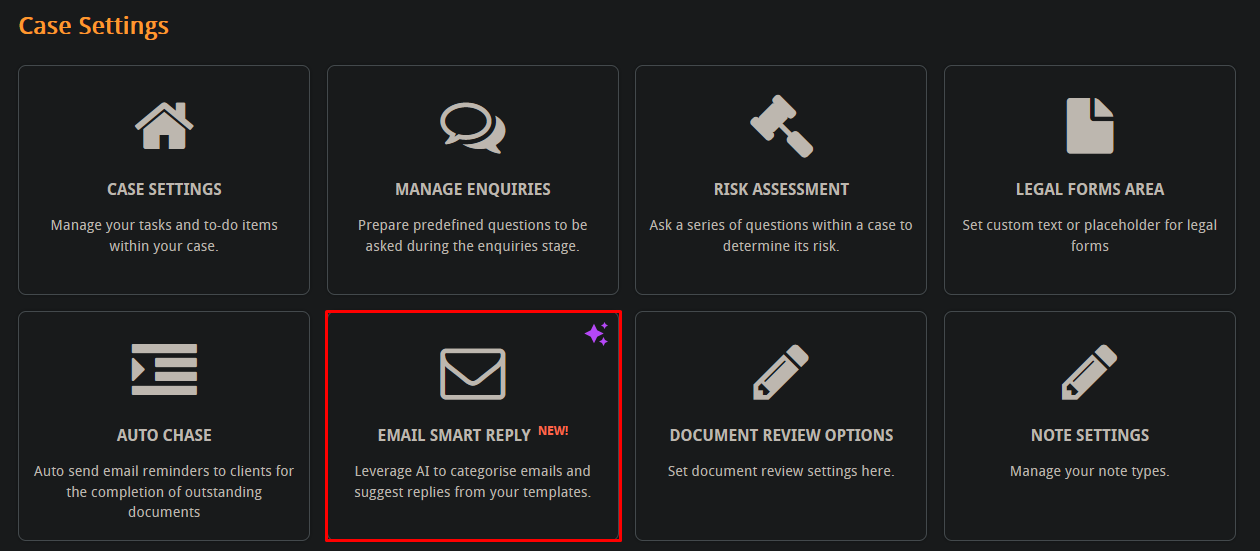
Then click on Email Smart Reply,
You will need to press this button to switch it on,

When you do, you will see a list of different scenarios you can add template style replies to,
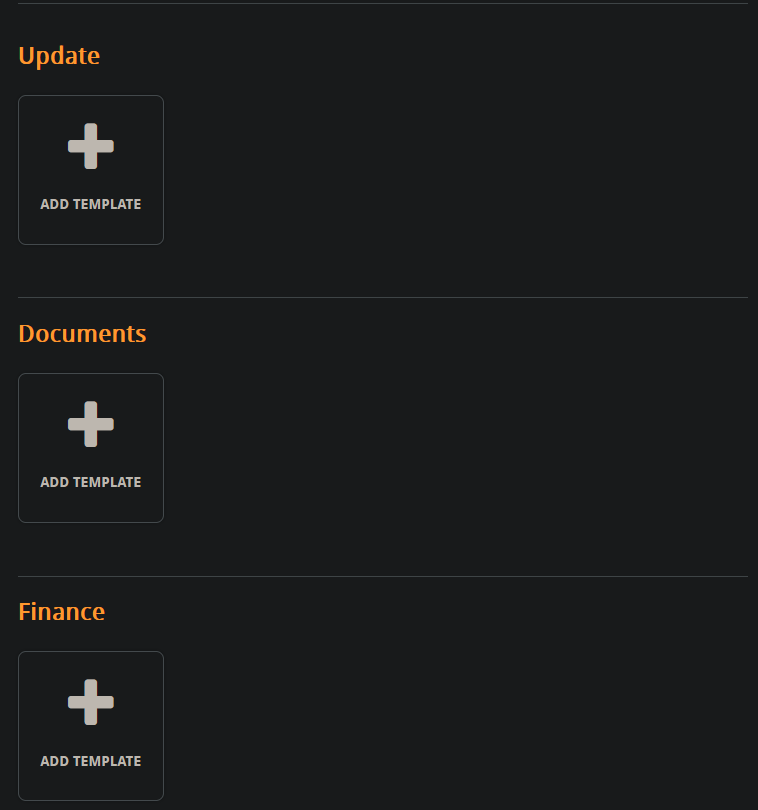
Each section can have up to 5 email templates that can be used,
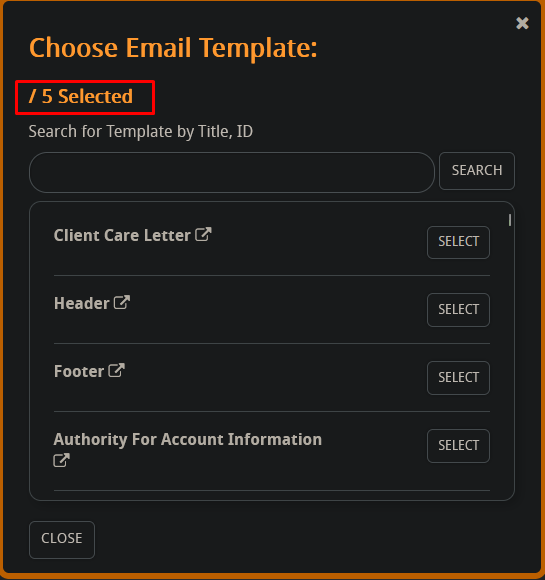
If you press add template you will see a list of templates you can pick to add as a potential response,
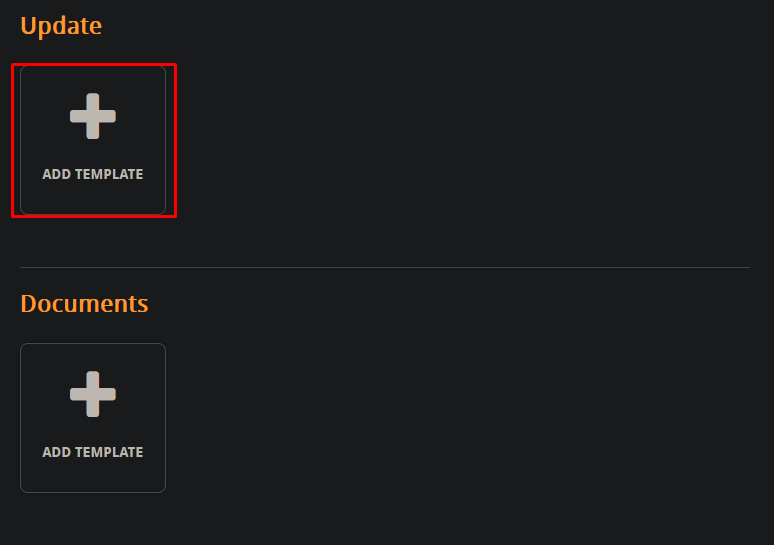
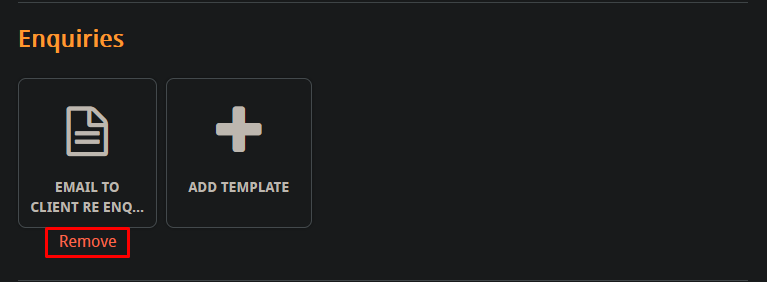
Your choices save automatically after you pick them. You can remove any templates as choices after you have added them,
How does it work?
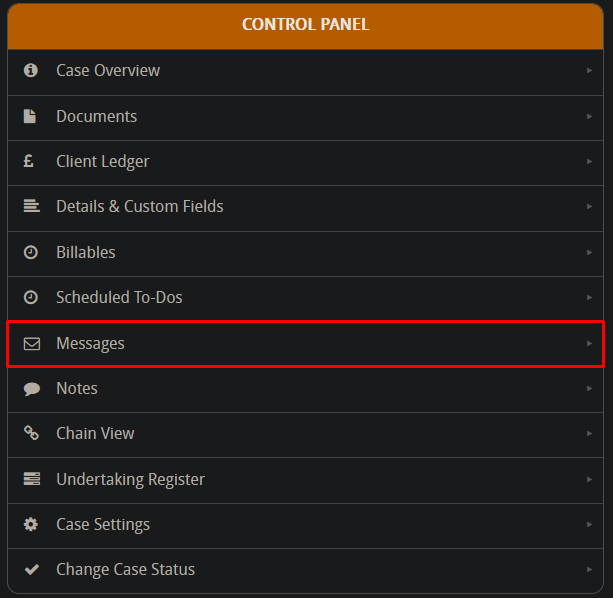
When you receive a response to an email for one of your cases it will show in the case messages area here,
If it doesn’t please check your general messages area here,

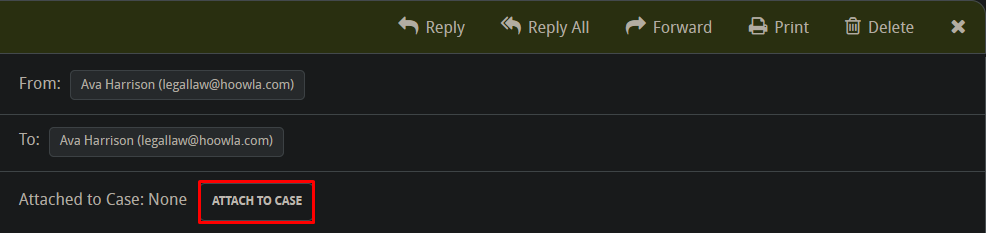
You can then attach it manually to the correct case by pressing this button,
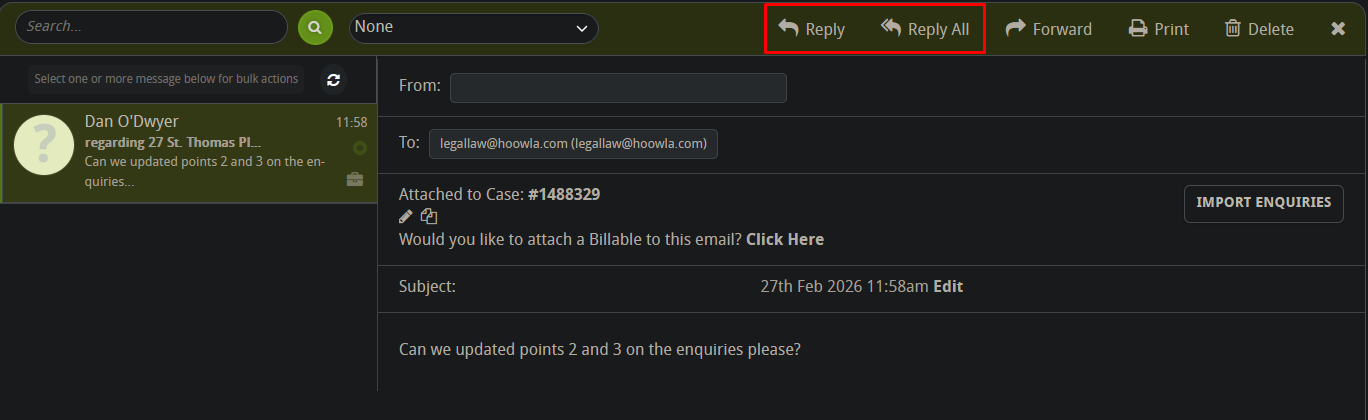
Back to the case messages, when you locate the email press reply or reply all if other people are cc’d in,
You’ll see the smart reply option pop up here,
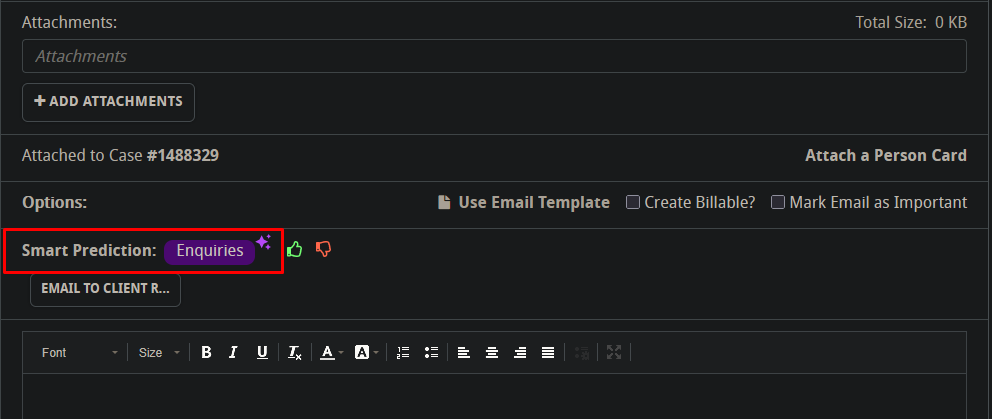
It will have guessed the reply type based on the context and content of the email,

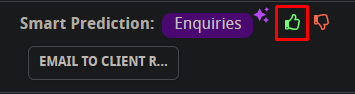
If it’s correct make sure to press the thumbs up button, this will help Smart Reply to recognise and categories emails more consistently,
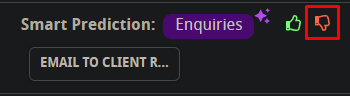
On the other hand, if it’s chosen incorrectly press the thumbs down button,
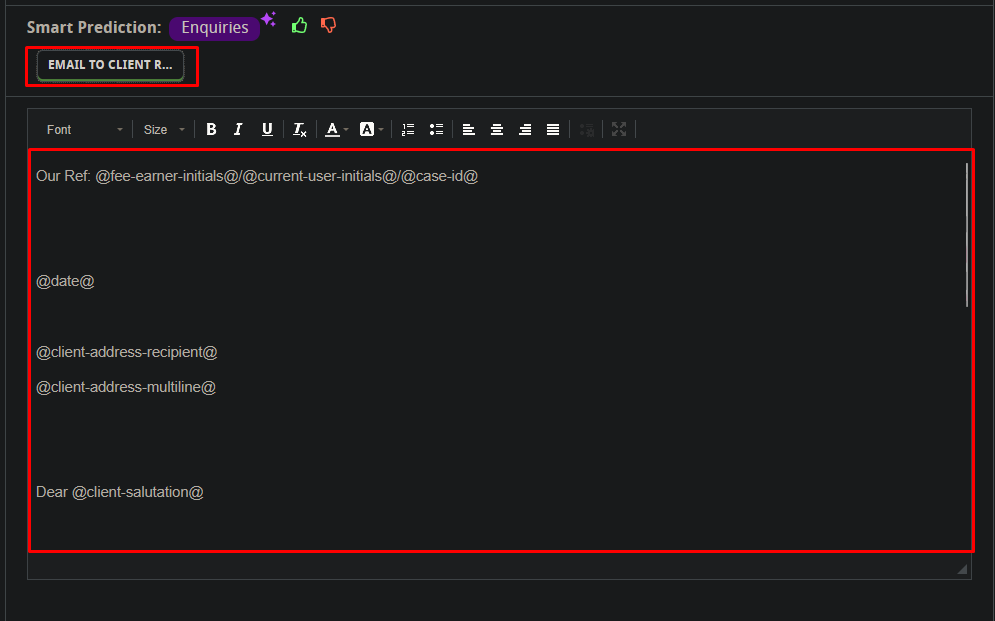
If the Smart Reply is correct, you can pick from your template choices you set in the Smart Reply setup area here,

The email will updated itself with the contents of your chosen email Smart Reply template,
Finally, press send when you’re ready,
